Backup an entire drive (e.g., m.2 SSD, SSD, HDD) with your operating system and files as an image stored in a folder on another drive (e.g., USB drive). If a hardware failure occurs, or if you want to go back to that state, you can restore from that image.
Use the Tab key to highlight the <Ok> or <Cancel> buttons in Clonezilla.
Boot the Clonezilla Live USB
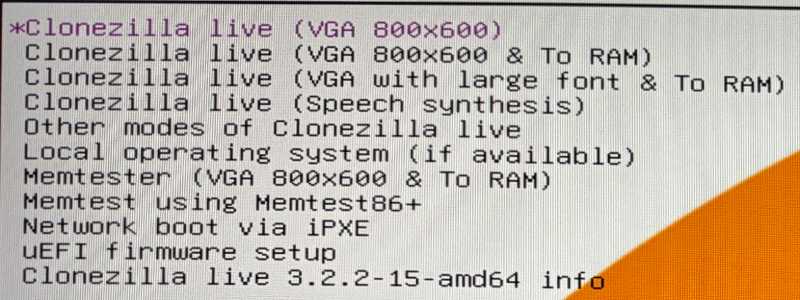
At the GRUB boot menu, select Clonezilla live (VGA 800x600)
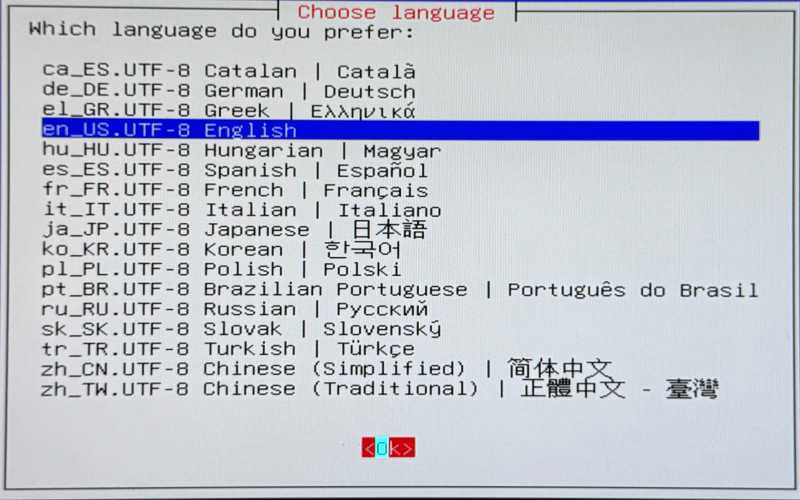
Which language do you prefer:
Change keyboard layout?
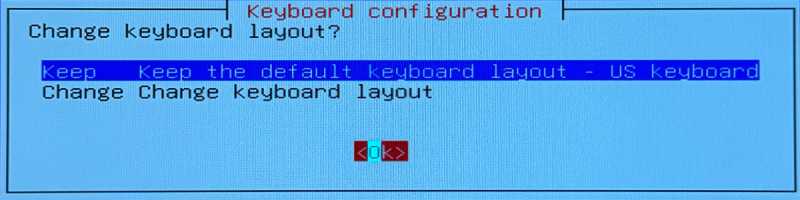
Keep the default keyboard layout - US keyboardStart Clonezilla or enter login shell (command line)?
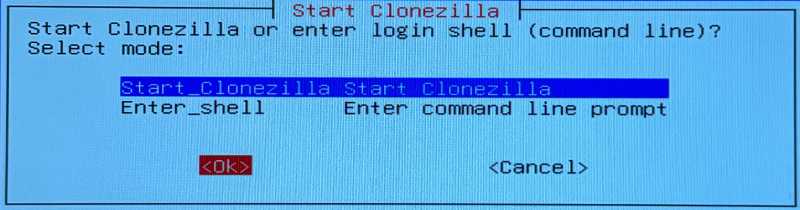
Start_Clonezilla Start ClonezillaTwo modes are available, you can
(1) clone/restore a disk or partition using an image
(2) disk to disk or partition to partition clone/restore
Select mode:
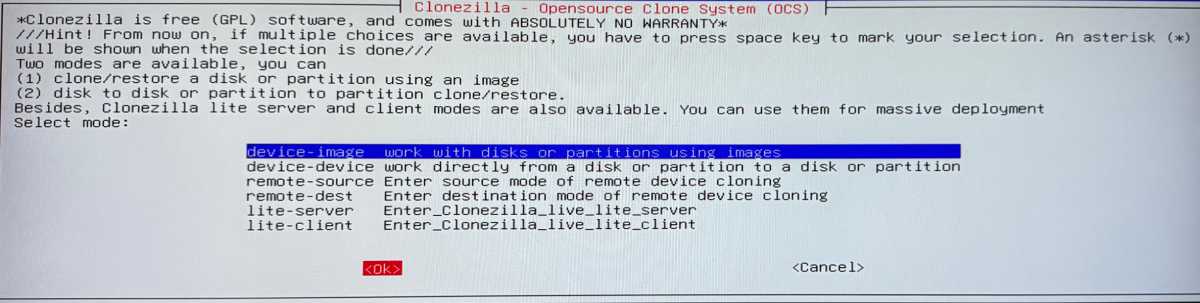
device-image work with disks or partitions using images to copy the entire drive into a folder with the image to be stored laterdevice-device work directly from a disk or partition to a disk or partition if you want to clone one drive to another, such as buying a new drive because your current OS drive is running out of space and you just want the whole new drive to act exactly like the old oneBefore cloning, you have to assign where the Clonezilla image will be saved to or read from.
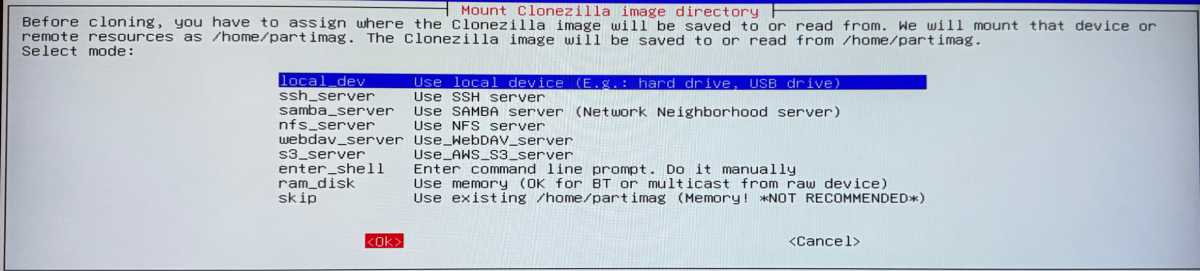
local_dev Use local device (E.g.: hard drive, USB drive) to save the image to a local device, such as a USB driveWhen prompted at the bottom, insert the USB drive and press Enter to continue

On the next screen, verify the USB where the image will be saved is in the list and note the name (e.g., sdc). Press CTRL+C to exit this screen

Now we need to mount a device as /home/partimag (Clonezilla image(s) repository) so that we can read or save the image in /home/partimag.
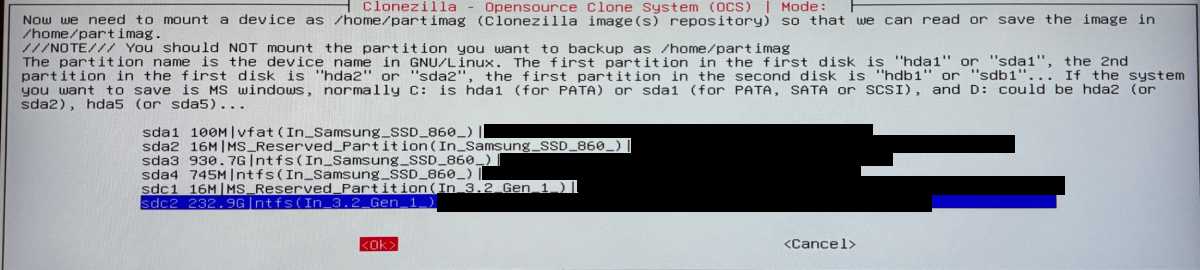
sdc2 232.9G)/home/partimag and store the backup image thereChoose if you want to check and repair the file system before mounting the image repository.

no-fsck Skip checking/repairing the file system before mountingWhich directory is for the Clonezilla image repository?

This screen specifies which directory on the USB drive to save the image to. Note the Current selected dir name: "/".
Press Tab and select Done to leave it as is
Verify the info at the bottom is correct and press Enter to continue

Choose the mode to run the following wizard about advanced parameters:
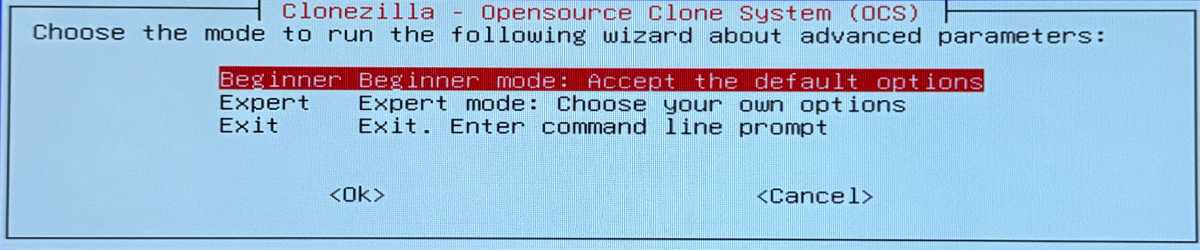
Beginner Beginner mode: Accept the default optionsSelect savedisk Save_local_disk_as_an_image to backup the entire disk including all partitions

Input a name for the saved image to use.

Choose local disk as source.

Choose either compression option

Choose if you want to check and repair the file system before saving it.

-sfsck Skip checking/repairing source file systemAfter the image is saved, do you want to check if the image is restorable?

Yes, check the saved imageDo you want to encrypt the image?

-senc Not to encrypt the imageDo you want to copy the log files to Clonezilla live USB drive if it exists in this machine?

-plu Yes, copy log files to Clonezilla live USB drive if it existsThe action to perform when everything is finished:
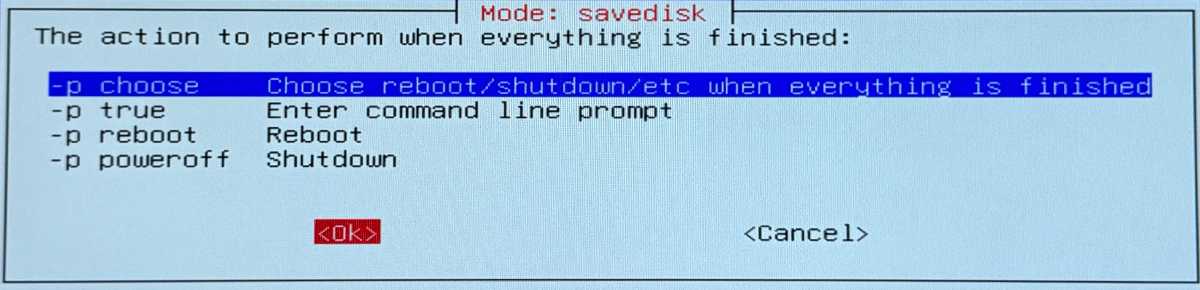
I chose -p choose Choose reboot/shutdown/etc when everything is finished
Verify the information at the bottom and press Enter to continue

Verify the information at the bottom and type y and press Enter to continue
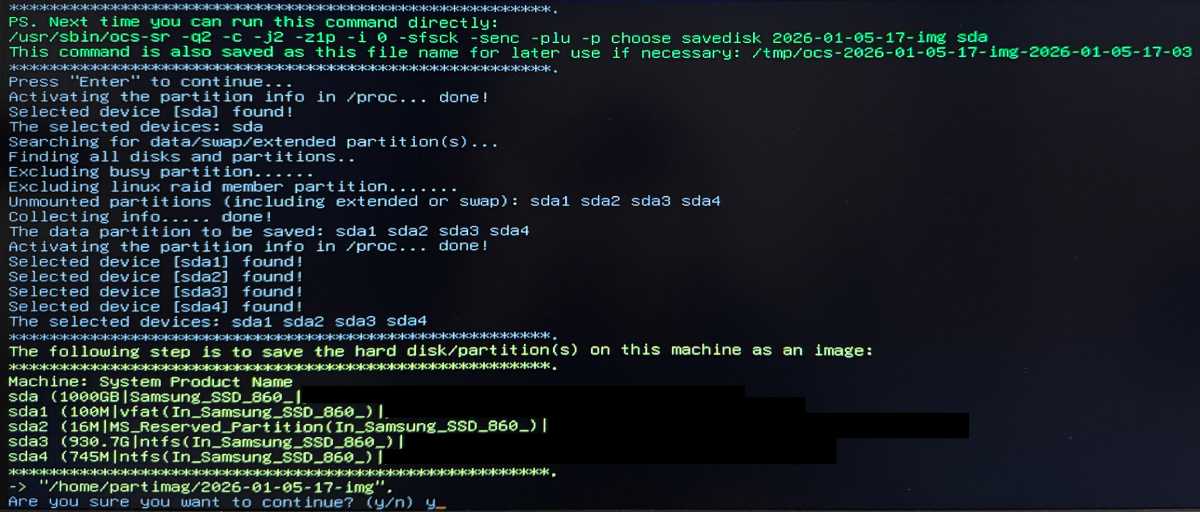
Wait for the cloning process
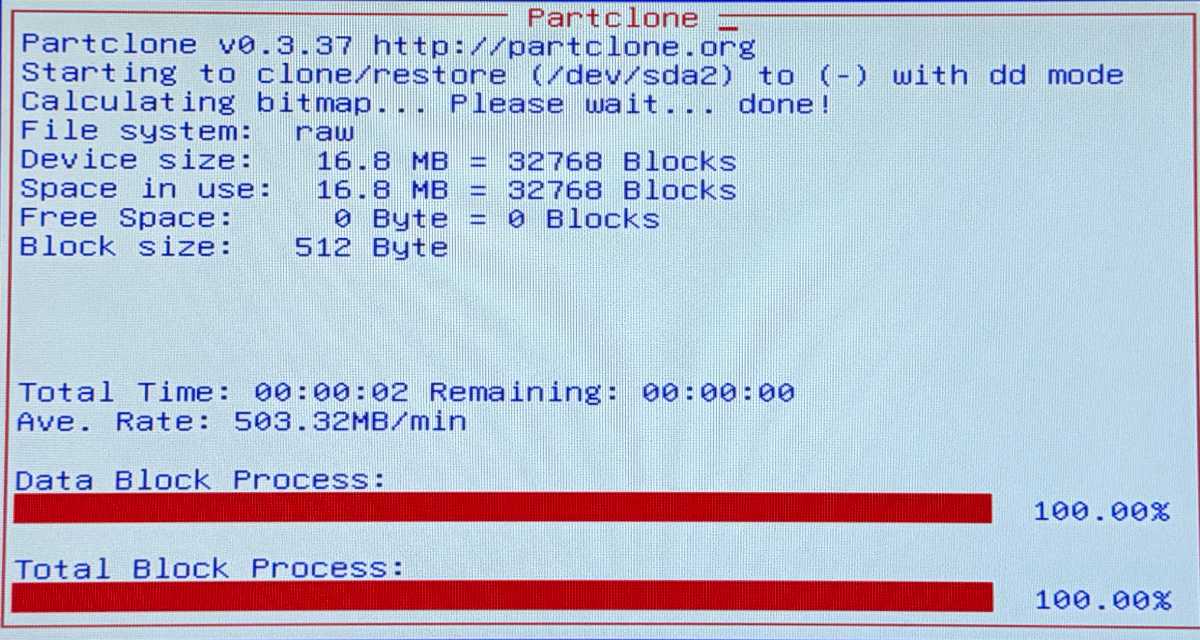
When the cloning process is complete, press Enter to continue
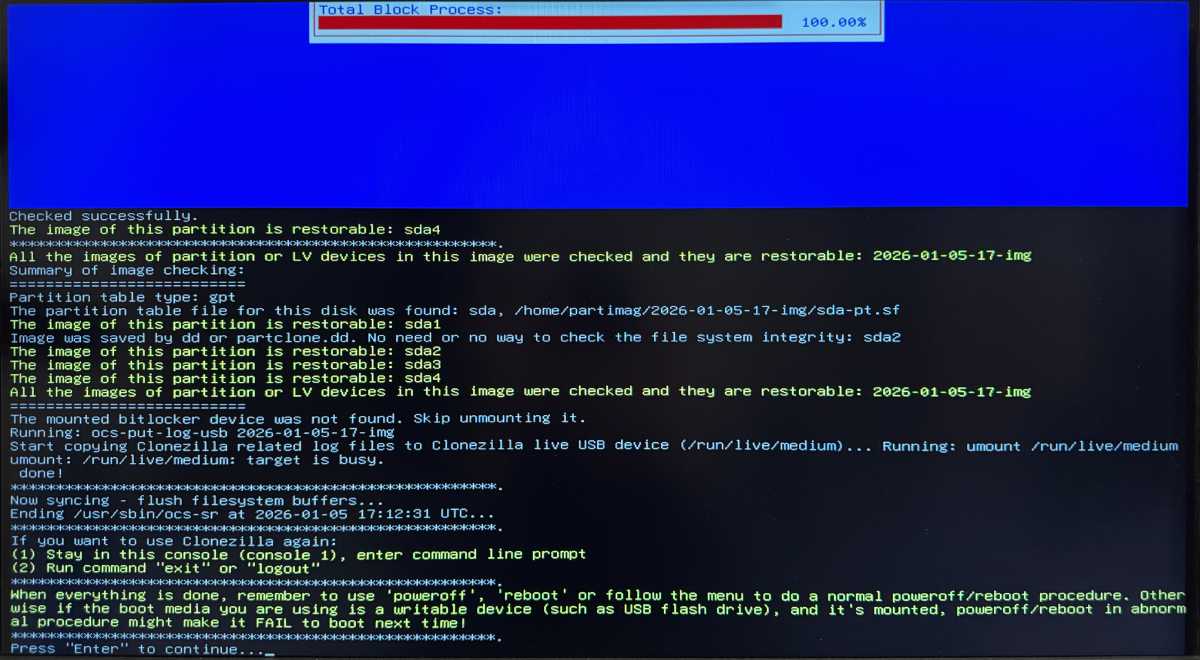
Now you can choose to:
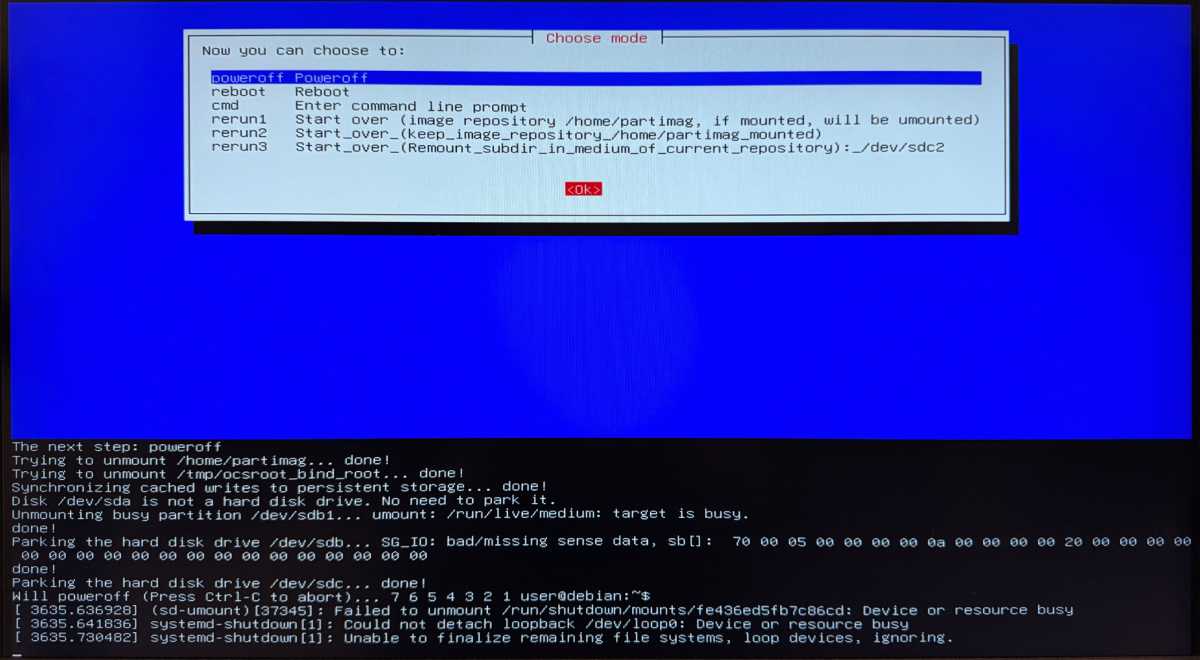
poweroff Poweroff so I can safely remove the USB drives before turning on the PC for normal use