Watching a video on a Windows 11 virtual machine under QEMU/KVM with Virtual Machine Manager has an audio delay. This method tells the VM to use the the host user’s audio session instead of a virtual audio interface like spice.
# Get the numeric ID of the current user
id -u

# Get the user name
whoamisudo nano /etc/libvirt/qemu.conf
# For nano text editor press Ctrl+f to find
# Tip: Press (not together) "Escape", and then "f" to find next instance
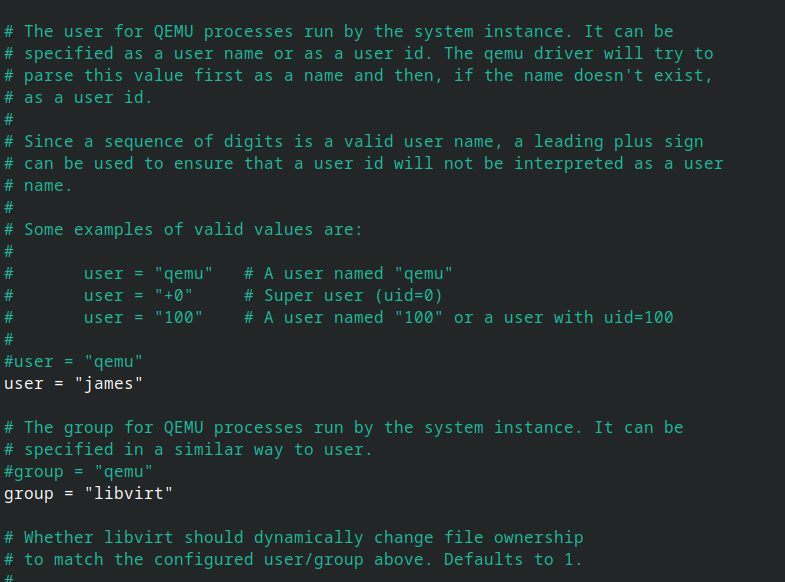
user = "qemu"

# Add this line just below it
user = "<LINUX_USER>"

# Just below that, you will see `group = "qemu"`
# Add this line just below it
group = "libvirt"
Example:
sudo systemctl restart libvirtd
You may get a notification error about “SELinux Alert - attempted write access on system_bus_socket” when starting the VM.
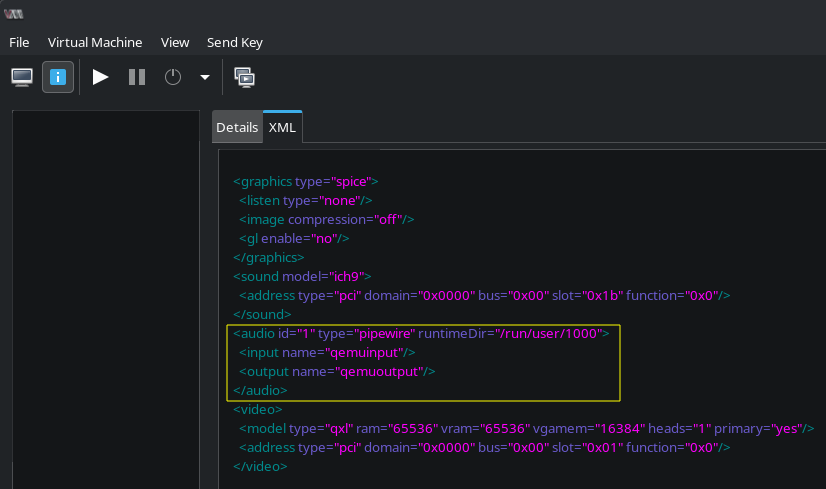
<graphics><graphics/> and <video><video/> sections. It’s there to help you find the <sound></sound> section.Add the <audio></audio> section. Notice the 1000 is the numeric user ID from id -u.
XML:
    <graphics type="spice">
      <listen type="none"/>
      <image compression="off"/>
      <gl enable="no"/>
    </graphics>
    <sound model="ich9">
      <address type="pci" domain="0x0000" bus="0x00" slot="0x1b" function="0x0"/>
    </sound>
    <audio id="1" type="pipewire" runtimeDir="/run/user/1000">
      <input name="qemuinput"/>
      <output name="qemuoutput"/>
    </audio>
    <video>
      <model type="qxl" ram="65536" vram="65536" vgamem="16384" heads="1" primary="yes"/>
      <address type="pci" domain="0x0000" bus="0x00" slot="0x01" function="0x0"/>
    </video>
Example: