The Start menu in Windows 11 will attempt to search the web before any local results. If it thinks it has access to the internet but only has LAN, entering a search causes it to hang for a while.
Source (user: Limitless Technology): https://learn.microsoft.com/en-us/answers/questions/782951/how-do-you-disable-the-search-box-from-showing-web
Windows Key + R to launch RunregeditHKEY_CURRENT_USER\SOFTWARE\Policies\Microsoft\WindowsExplorerDisableSearchBoxSuggestionsIf you want to change it back and add web results again, go back and change the DWORD value for DisableSearchBoxSuggestions to 0 or delete the keys you created originally.
No more clicking “Show more options”. Enough said.
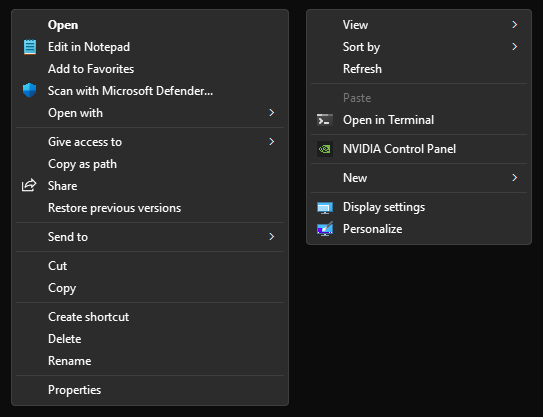
Windows Key + R to launch RunregeditComputer\HKEY_CURRENT_USER\Software\Classes\CLSID{86ca1aa0-34aa-4e8b-a509-50c905bae2a2}InprocServer32Value data blank > OKRun Command Prompt as Administrator
diskpart
list disk
select Disk <1|2|3...>

# Show disks again and look for the asterisk to confirm the correct disk is selected
list disk

# Open This PC to double-check you have selected the desired disk

clean

# (Optional) Convert to gpt
#  - gpt (recommended for modern systems, NVMe drives, and UEFI)
#  - mbr (only for older BIOS-based systems or drives <2TB | pre-UEFI, pre-2012)
convert <gpt|mbr>

# Initialize for regular use
create partition primary
format fs=ntfs quick OR format fs=ntfs quick label="DataDrive"
assign letter=<E|F|G...>
exitdiskpart
list disk
select disk <1|2|3...>
# Use `list disk` again to check the asterisk on the left-most column for confirmation
clean
exitThis ensures a long hash won’t be cut off.
Open PowerShell
(Get-FileHash "<PATH_TO_FILE>" -Algorithm SHA256).Hash